GUI Slider#
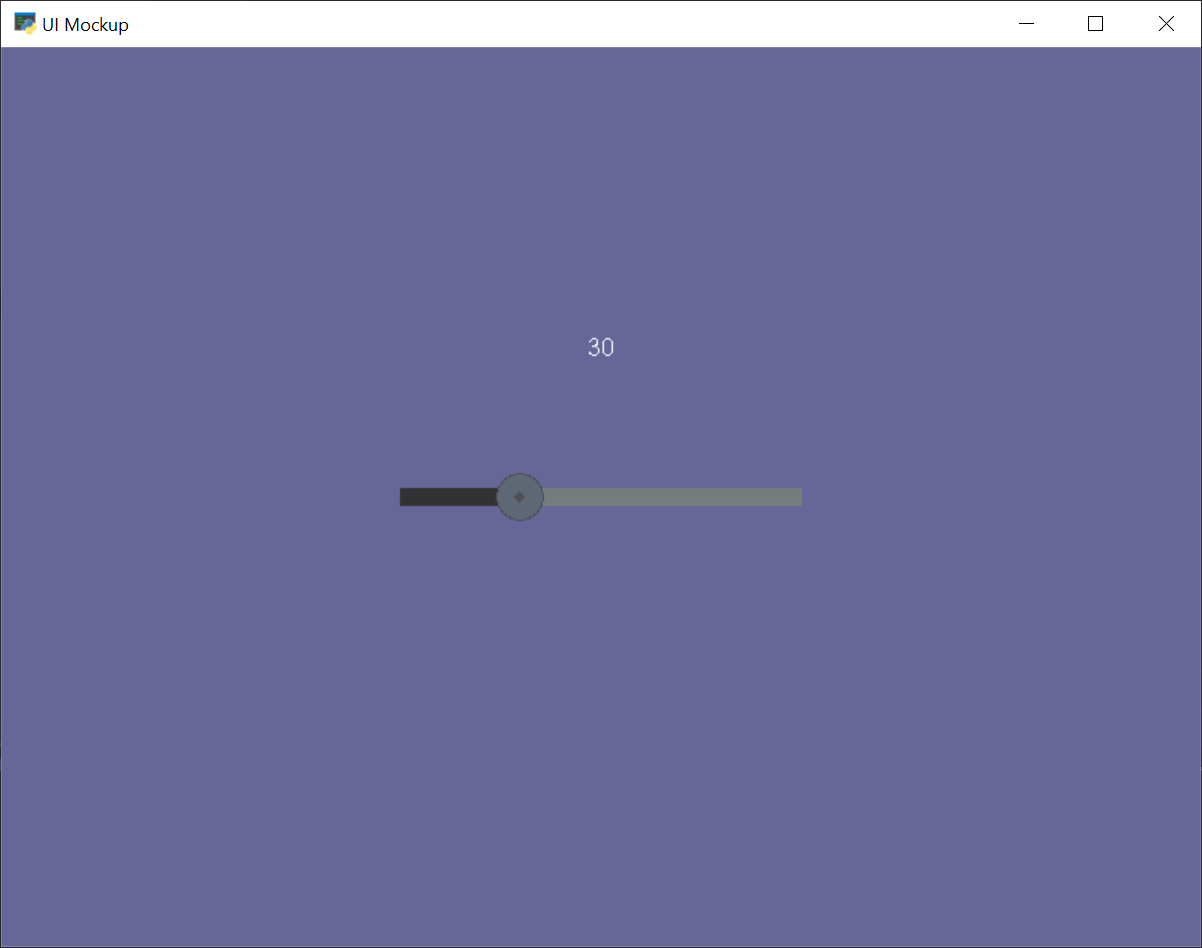
gui_slider.py#
 1"""
 2GUI Slider Example
 3
 4If Python and Arcade are installed, this example can be run from the
 5command line with:
 6python -m arcade.examples.view_screens_minimal
 7
 8This example demonstrates how to create a GUI slider and react to
 9changes in its value.
10
11There are two other ways of handling update events. For more
12information on this subject, see the gui_flat_button example.
13
14If Python and Arcade are installed, this example can be run from the command line with:
15python -m arcade.examples.gui_slider
16"""
17import arcade
18from arcade.gui.widgets.slider import UISlider
19from arcade.gui import UIManager, UILabel
20from arcade.gui.events import UIOnChangeEvent
21
22
23class UIMockup(arcade.Window):
24    def __init__(self):
25        super().__init__(800, 600, "UI Mockup", resizable=True)
26        arcade.set_background_color(arcade.color.DARK_BLUE_GRAY)
27
28        # Required, create a UI manager to handle all UI widgets
29        self.manager = UIManager()
30        self.manager.enable()
31
32        # Create our pair of widgets
33        ui_slider = UISlider(value=50, width=300, height=50)
34        label = UILabel(text=f"{ui_slider.value:02.0f}")
35
36        # Change the label's text whenever the slider is dragged
37        # See the gui_flat_button example for more information.
38        @ui_slider.event()
39        def on_change(event: UIOnChangeEvent):
40            label.text = f"{ui_slider.value:02.0f}"
41            label.fit_content()
42
43        # Create a layout to hold the label and the slider
44        ui_anchor_layout = arcade.gui.widgets.layout.UIAnchorLayout()
45        ui_anchor_layout.add(
46            child=ui_slider,
47            anchor_x="center_x",
48            anchor_y="center_y"
49        )
50        ui_anchor_layout.add(child=label, align_y=50)
51
52        self.manager.add(ui_anchor_layout)
53
54    def on_draw(self):
55        self.clear()
56        self.manager.draw()
57
58
59if __name__ == "__main__":
60    window = UIMockup()
61    arcade.run()