OK Message Box#
For an introduction the GUI system, see GUI Concepts.
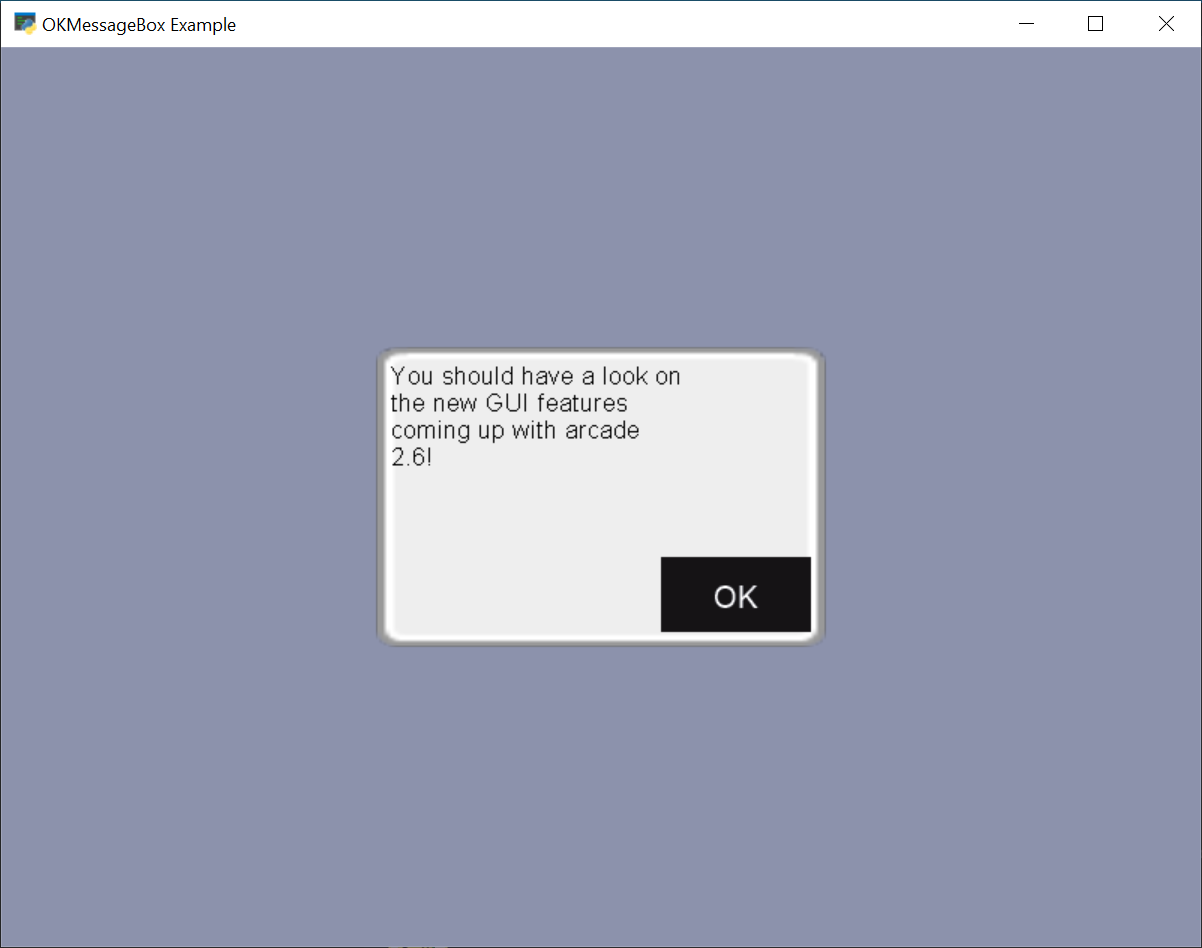
This example shows how to pop up a quick message box for the user to click ‘Ok’ on
using the arcade.gui.OKMessagebox class.
gui_ok_messagebox.py#
 1"""
 2Example code showing how to use the OKMessageBox
 3
 4If Python and Arcade are installed, this example can be run from the command line with:
 5python -m arcade.examples.gui_ok_messagebox
 6"""
 7import arcade
 8import arcade.gui
 9import arcade.gui.widgets.buttons
10import arcade.gui.widgets.layout
11from arcade.gui import UIOnClickEvent
12from arcade.gui.events import UIOnActionEvent
13
14
15class MyWindow(arcade.Window):
16    def __init__(self):
17        super().__init__(800, 600, "OKMessageBox Example", resizable=True)
18        arcade.set_background_color(arcade.color.COOL_GREY)
19
20        # Create and enable the UIManager
21        self.manager = arcade.gui.UIManager()
22        self.manager.enable()
23
24        # Create a box group to align the 'open' button in the center
25        self.v_box = arcade.gui.widgets.layout.UIBoxLayout()
26
27        # Create a button. We'll click on this to open our window.
28        # Add it v_box for positioning.
29        open_message_box_button = arcade.gui.widgets.buttons.UIFlatButton(
30            text="Open", width=200
31        )
32        self.v_box.add(open_message_box_button)
33
34        # Add a hook to run when we click on the button.
35        open_message_box_button.on_click = self.on_click_open
36        self.open_message_box_button = open_message_box_button
37        # Create a widget to hold the v_box widget, that will center the buttons
38
39        ui_anchor_layout = arcade.gui.widgets.layout.UIAnchorLayout()
40        ui_anchor_layout.add(child=self.v_box, anchor_x="center_x", anchor_y="center_y")
41        self.manager.add(ui_anchor_layout)
42
43    def on_click_open(self, _: UIOnClickEvent):
44        # The code in this function is run when we click the ok button.
45        # The code below opens the message box and auto-dismisses it when done.
46        message_box = arcade.gui.UIMessageBox(
47            width=300,
48            height=200,
49            message_text=(
50                "You should have a look on the new GUI features "
51                "coming up with arcade 2.6!"
52            ),
53            buttons=["Ok", "Cancel"],
54        )
55
56        @message_box.event("on_action")
57        def on_message_box_close(e: UIOnActionEvent):
58            print(f"User pressed {e.action}.")
59
60            # show open button and allow interaction again
61            self.open_message_box_button.visible = True
62
63        # hide open button and prevent interaction
64        self.open_message_box_button.visible = False
65
66        self.manager.add(message_box)
67
68    def on_draw(self):
69        self.clear()
70        self.manager.draw()
71
72    def on_key_release(self, symbol: int, modifiers: int):
73        print(self.open_message_box_button.rect)
74
75
76if __name__ == '__main__':
77    MyWindow().run()